
When To Use
With Easy Landing you take one landing page, and make dozens and dozens of variations of it so that every new click feels like they land on a page built specifically for them.
The most common examples are matching your landing page to:
- The headline you put on your Paid Social ad
- The keyword from your Paid Search campaign
- The first name of the user from your email campaign
Those are easy, right? The real fun is when you get creative and integrate Easy Landing into your testing strategy.
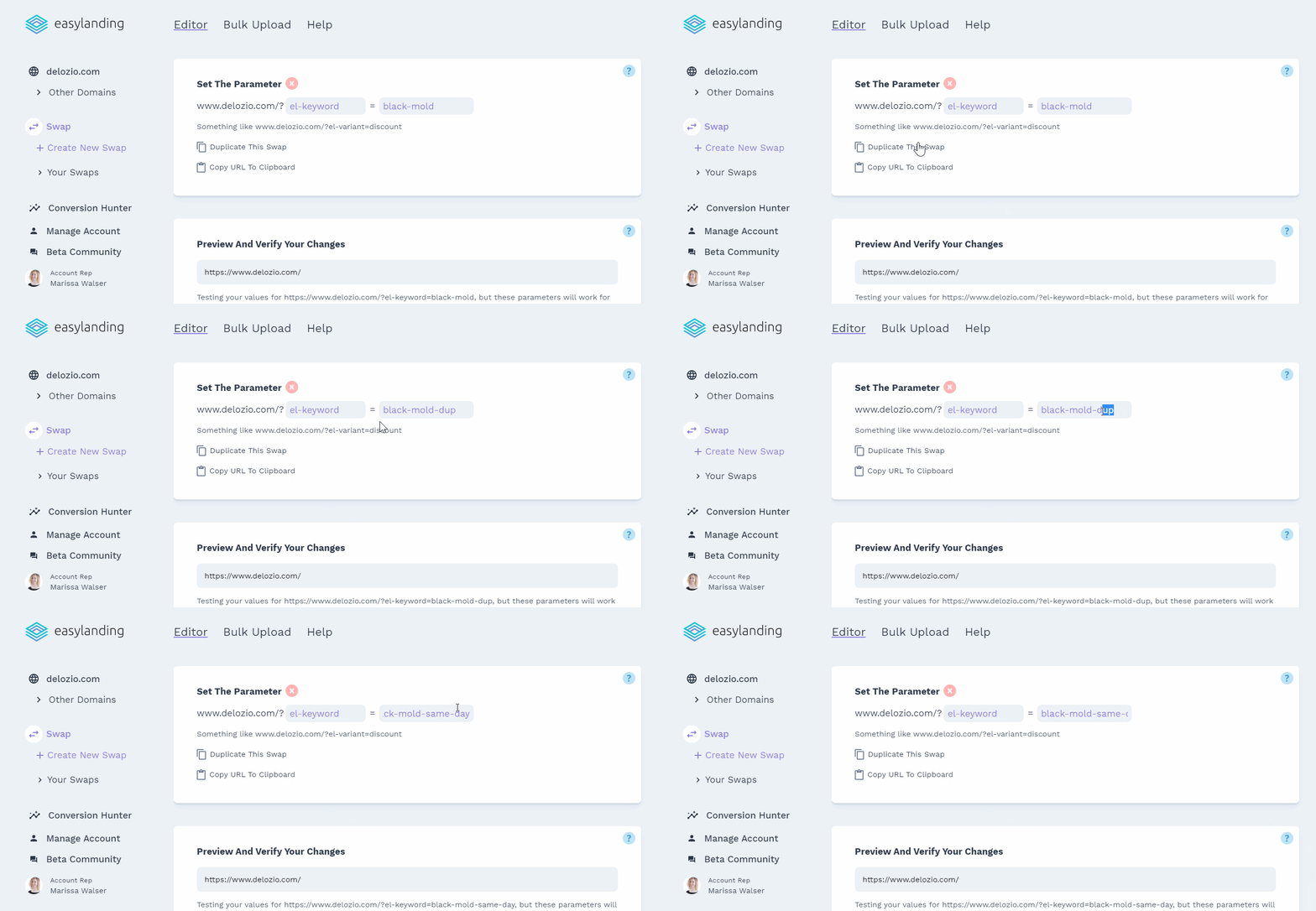
Let’s say you’re running ads for a client who does mold remediation and you’re already seeing success from separating out pages for terms like “mold inspection” and “mold remediation”
Ads are running well, but your client has a new special offer for same day service. This offer is less profitable, but if the ads convert well enough the return on the ads will make it worth it.
With Easy Landing, all you need to do is duplicate your existing swap, swap around the text and images for same day service, and you’re ready to rock.
Other use cases for Easy Landing, that will be covered below are:
- Inserting the user’s city on the page
- Swapping phone numbers to more easily track calls
- Unblock Google Analytics from ad blockers
- Insert a variable from the URL into your swap
Set Up
Easy Landing isn’t installed on your servers, instead it exists between your customers and your servers. This means that it’s easy to set up, and because we store your pages in a Content Delivery Network, your site will likely be faster than it was before.
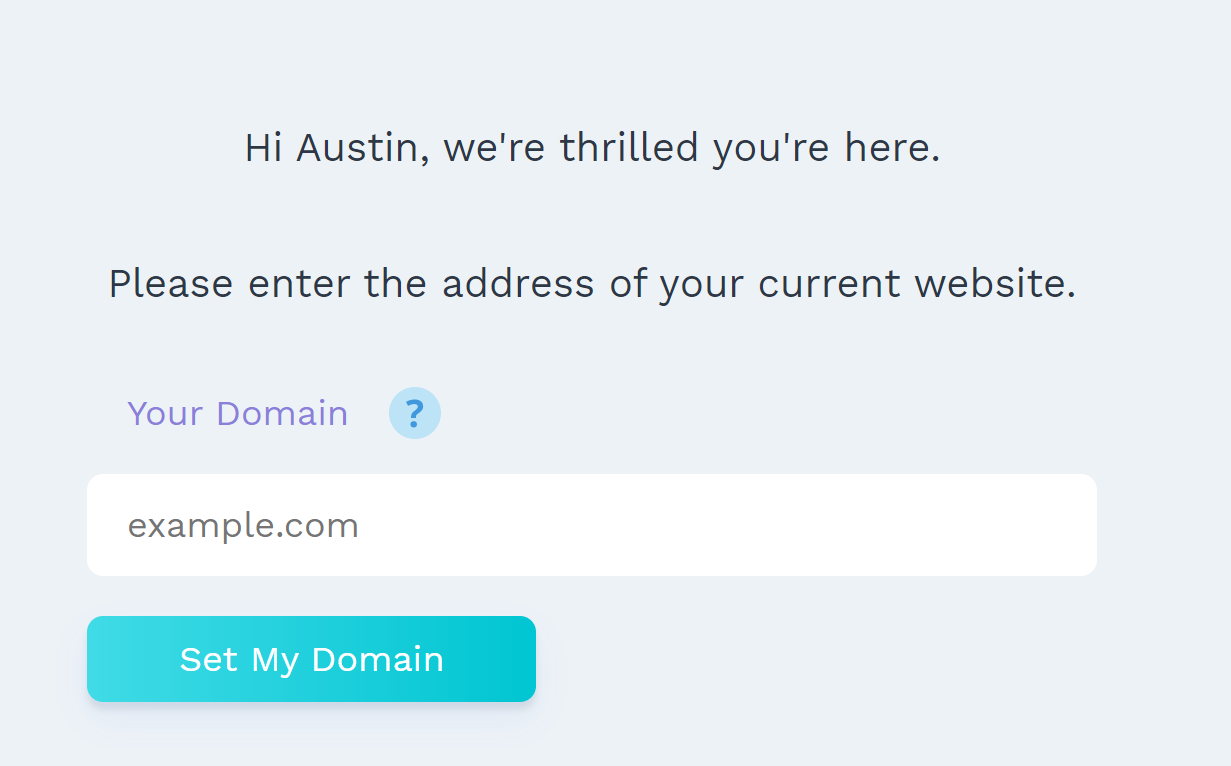
To start, enter the domain your website is. This could look like www.yourdomain.com or yourdomain.com.
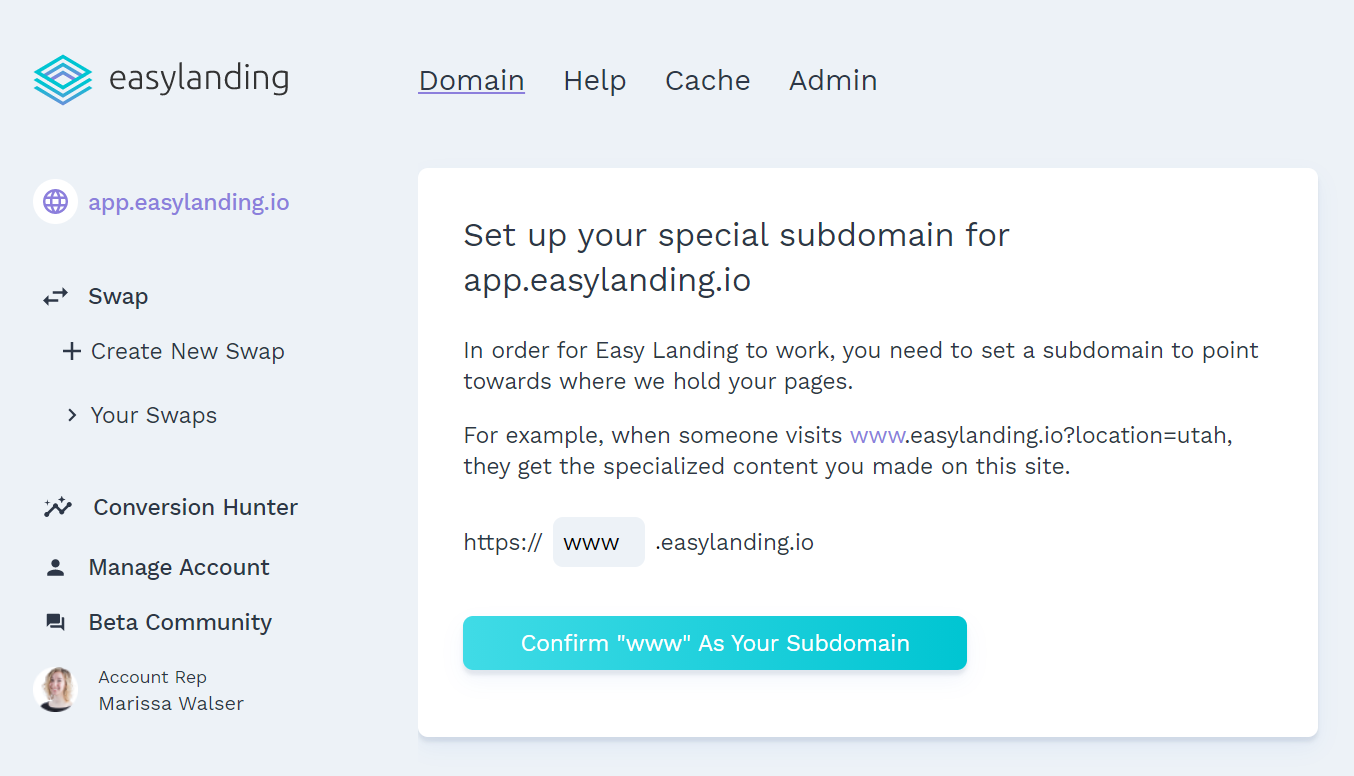
From there, you’ll be asked to choose a subdomain for your page. This can be anything, but “www” or “go” tend to be the most popular.
Next, instructions will pop up on how to set up your DNS records.
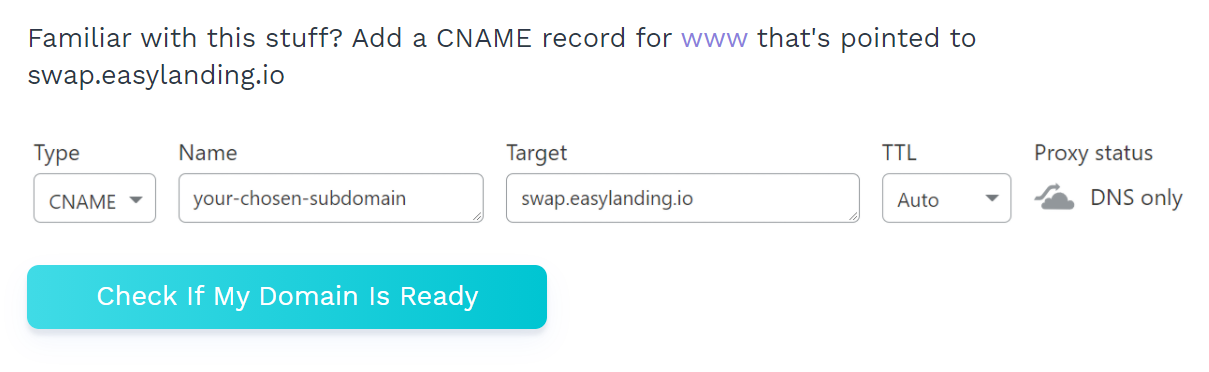
After you do this, your DNS records will take a little bit of time to propogate, and your entire site will be available on your new subdomain, ready to be customized!
Text Swap Quickstart
Here’s the cool stuff! Easy Landing was built first and foremost to make swapping text as easy as possible across dozens or hundreds of pages.
There are four different ways to make swaps, and each of them are helpful in different circumstances.
Visual Editor:
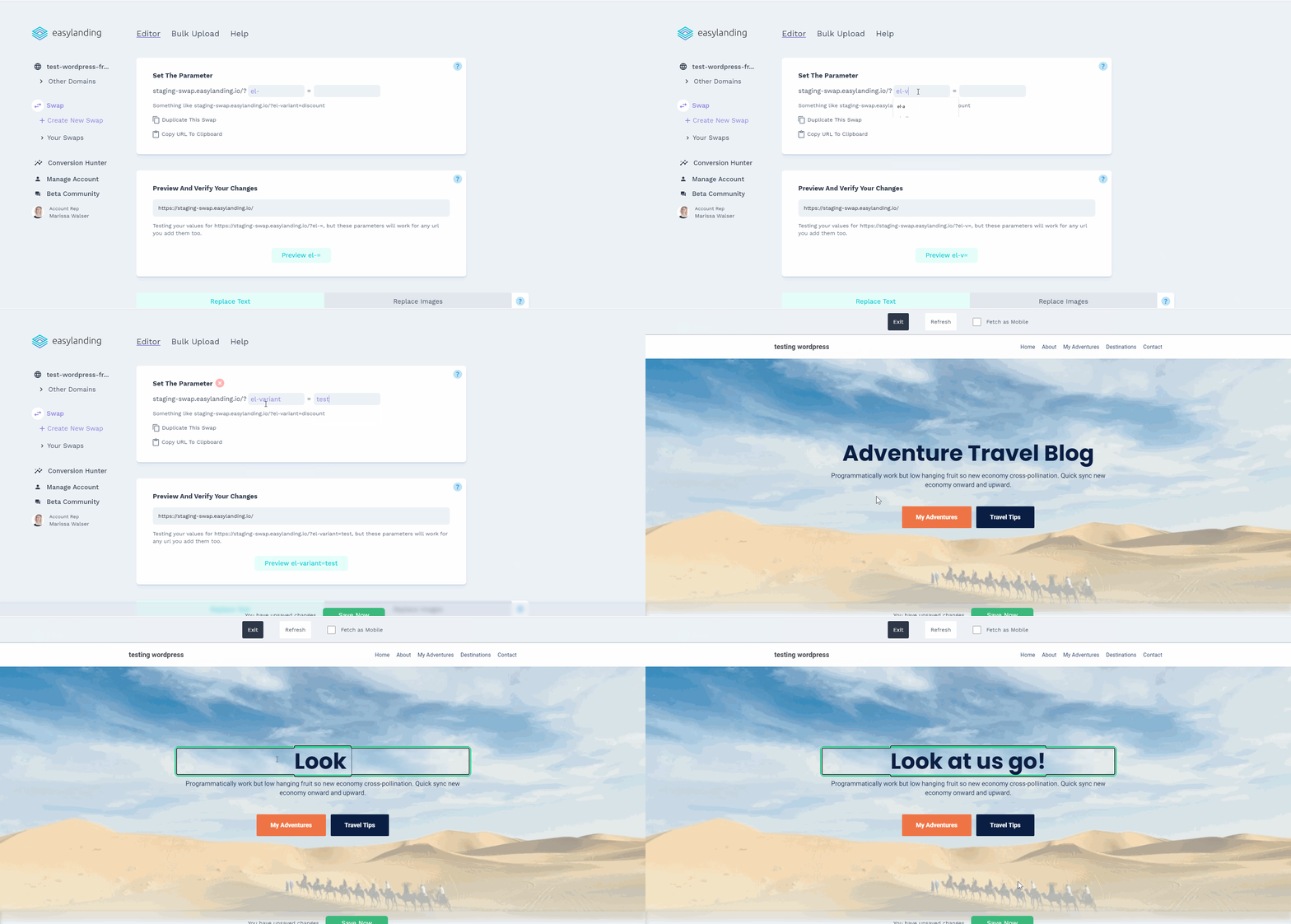
And just like that, you’ve got a new URL with changed text! What was yourdomain.com, is now yourdomain.com?el-variable=test with brand new content.
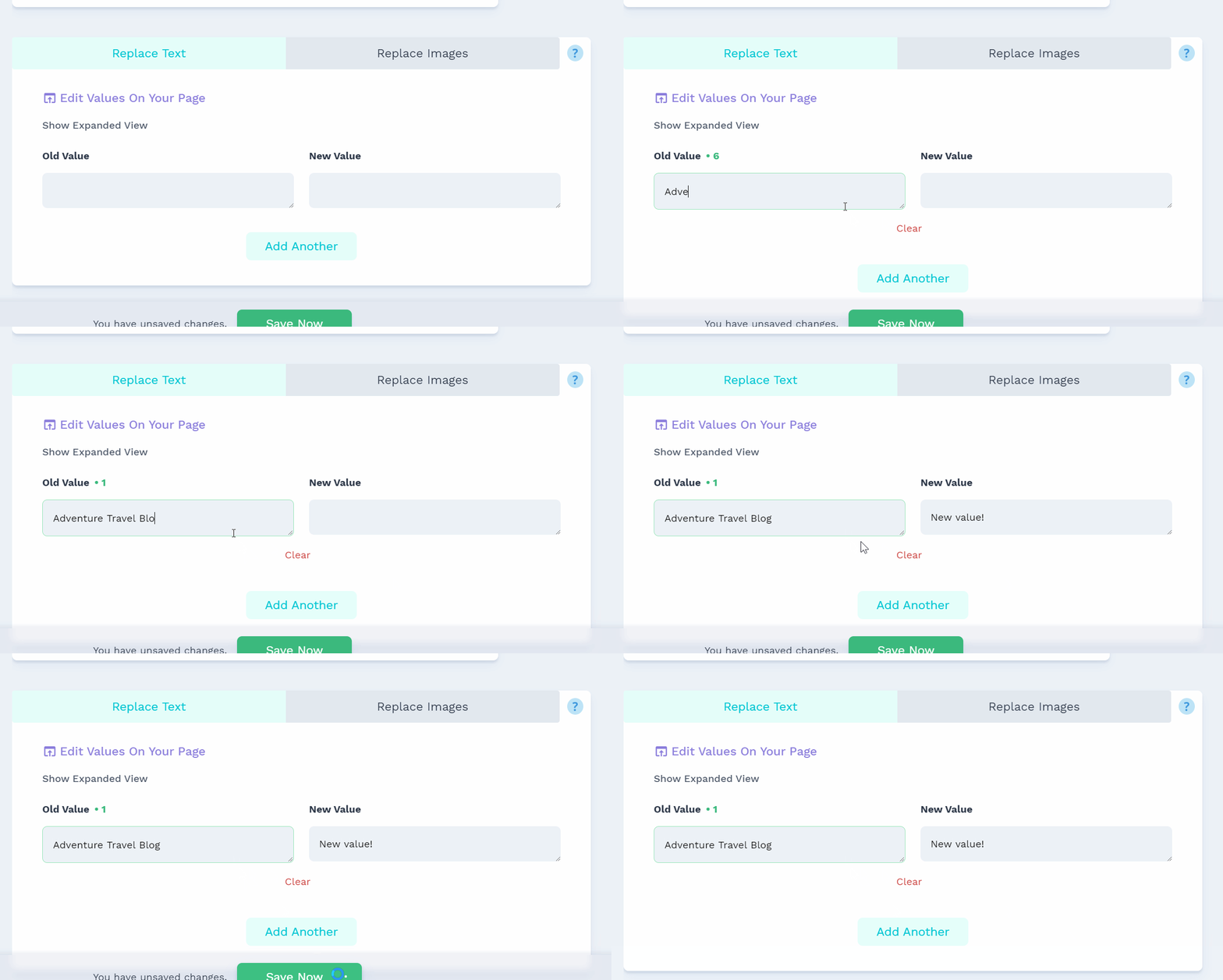
Standard Editor:
This one works exactly like you think it should. If you get a match, it lets you know, and you’re able to see your customized page.
Fullscreen Editor
And sometimes, there are pieces of text that are tricky to swap. Let’s say there’s bolded text in your paragraph. To our server, it looks like to separate elements.
Let’s say you have this:
Hi, my name is Austin.
Our server sees this as two separate sentences. “Hi, my name is”, and “Austin”. When we encounter this in the visual editor, there’s no easy way to preserve the bolded text. This gets even more complicated when it comes to certain custom HTML elements that page builders love to throw everywhere.
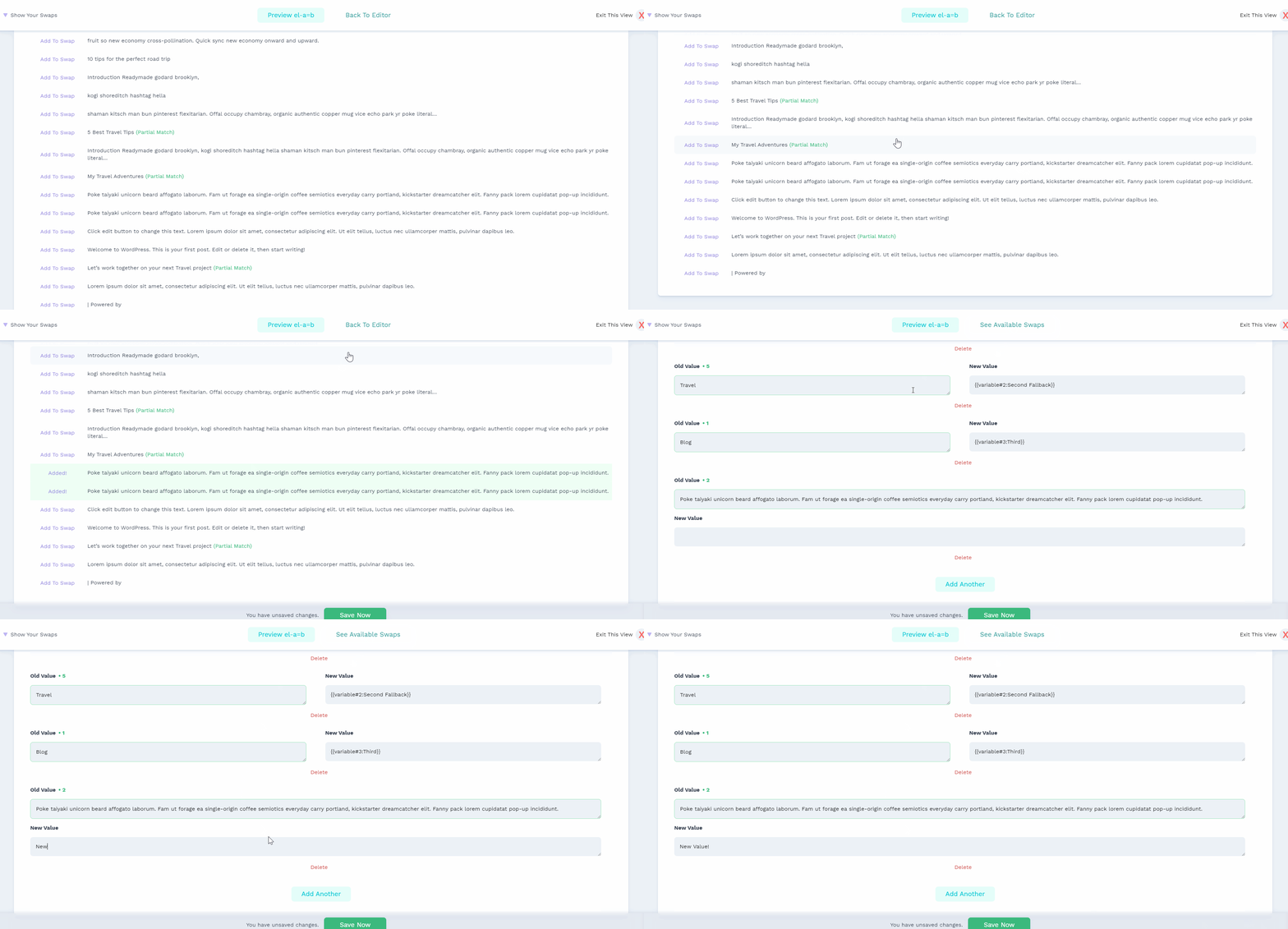
So if there’s a swap in the visual editor that has a red line around it, this means that something is stopping our ability to give a predictable swap.

To help make your life easier, we built a list view of all swaps available.
Bulk Upload
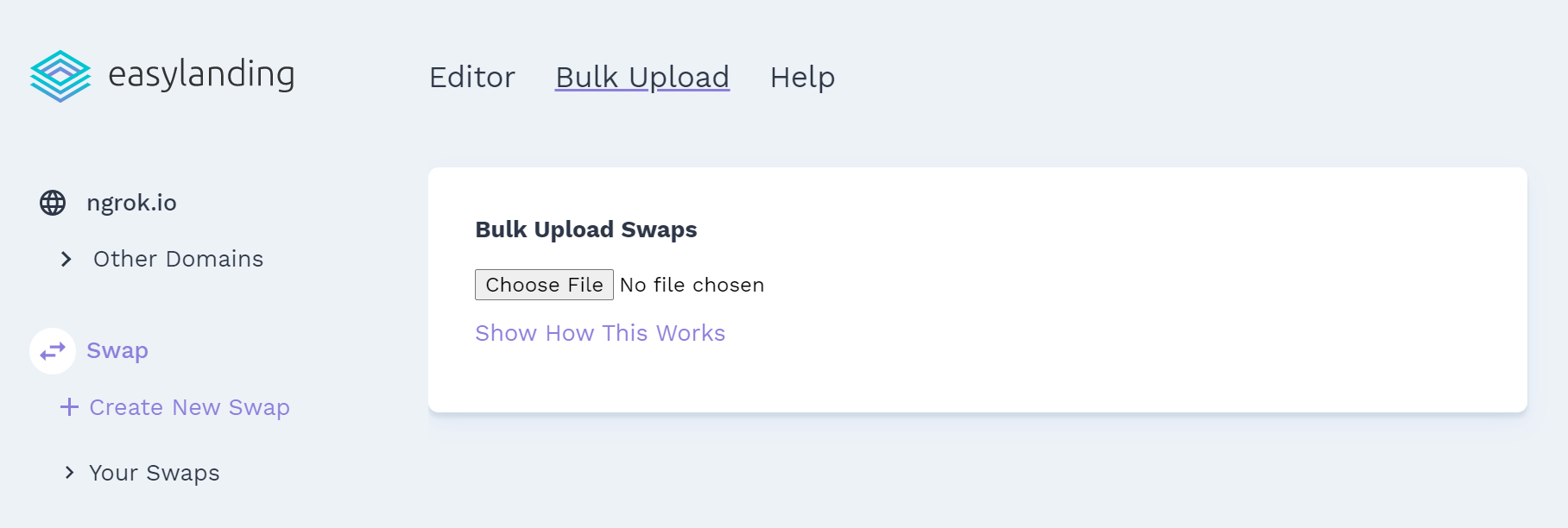
If your workflow is very “spreadsheet-centric” like a lot of marketers, you’ll love this.
To make hundreds of swaps right from excel, just follow the instructions under “Show How This Works,” and you’re able to remove any bottlenecks that could come with hundreds or even thousands of unique pages.
Insert User’s City
What shows relevance for your user like inserting the exact city they’re in? There are three ways to insert the user’s city.
From a Responsive Search Ad
Google includes a handy feature to add the user’s city in your responsive search ad. This means when someone searches for something like “Moving Company Near Me”, they get the exact city they’re in.
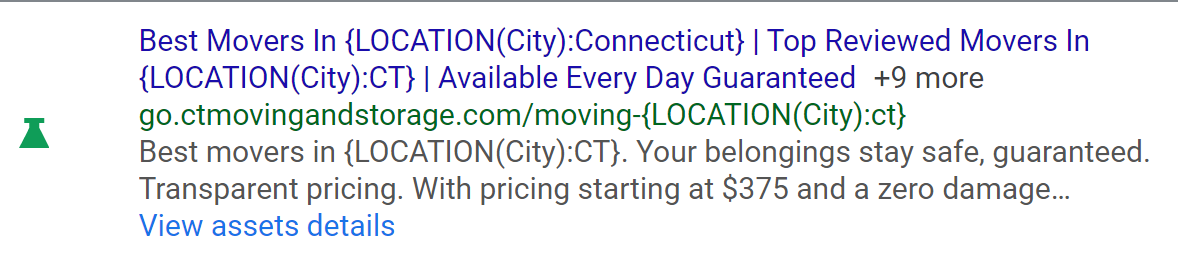
But picture this, if someone is searching for “Mover Boston” but live in New York City, Google will serve them the correct city here as “Boston.” But if Easy Landing were to look up the city they’re in and served them a headline about hiring a NYC mover… it wouldn’t be good.
To help get around this and serve the exact city the user sees in the ad to the landing page, you can use our special {{googleCity:Fallback}} code in your “new text.”
Then, in your campaign URL options add {lpurl}?physical-loc-el={loc_physical_ms}&interest-loc-el={loc_interest_ms}

When There’s No Responsive Search Ad Available
If you don’t have Google’s data because your traffic comes from somewhere else you can either add {{city}} to your replace value, or {{city:nonBlocking}}.
{{city}} will delay your page load by around 50-80ms because it will hide the page until it has the city to insert. If the text you’re replacing happens to be below the fold, using {{city:nonBlocking}} will not delay the page load.
Variables
Let’s say you want to create 100 different pages that have all the same swaps minus a few words. With Easy Landing, you can use a variable.
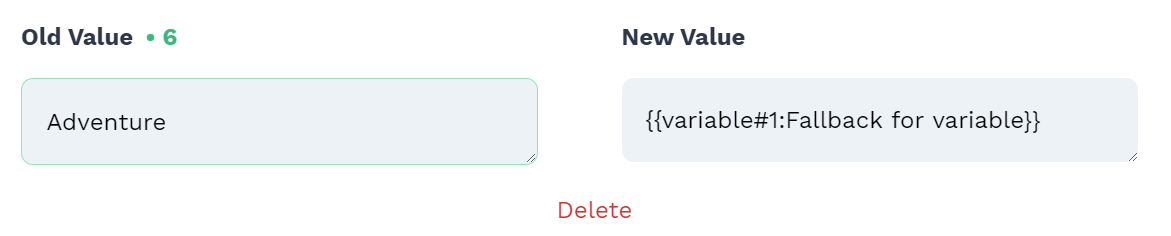
Then, in your URL, just throw in ?el-variable-1=your+text+here. Your text will automatically match the casing of your fallback text.
Add Formatting
Have a short sentence on your original page, and want to add a lot more content without creating a dense block of text? The {{br}} tag is your friend!
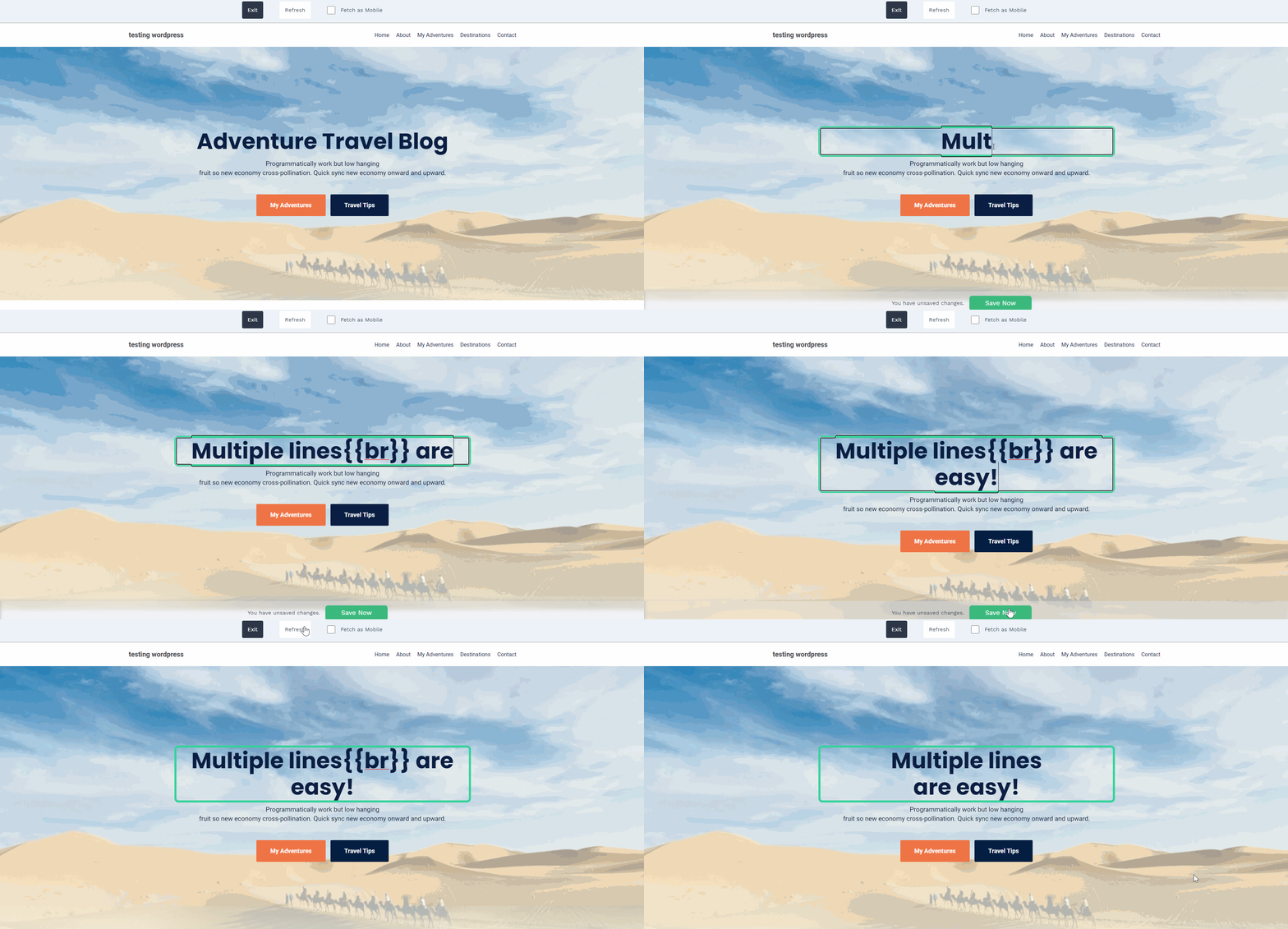
Supercharge Your Phone Swap
Here’s a quick secret if you use a call swapping service like Callrail you might be missing out on 10%+ of your conversions due to tracking numbers not swapping. Most commonly, this happens because a user has an adblocker which blocks Callrail’s script.
What’s worked for us is to add a tracking “fallback” number. If the swap doesn’t work for some reason, it’s not the business line that gets called, but a different Callrail number.
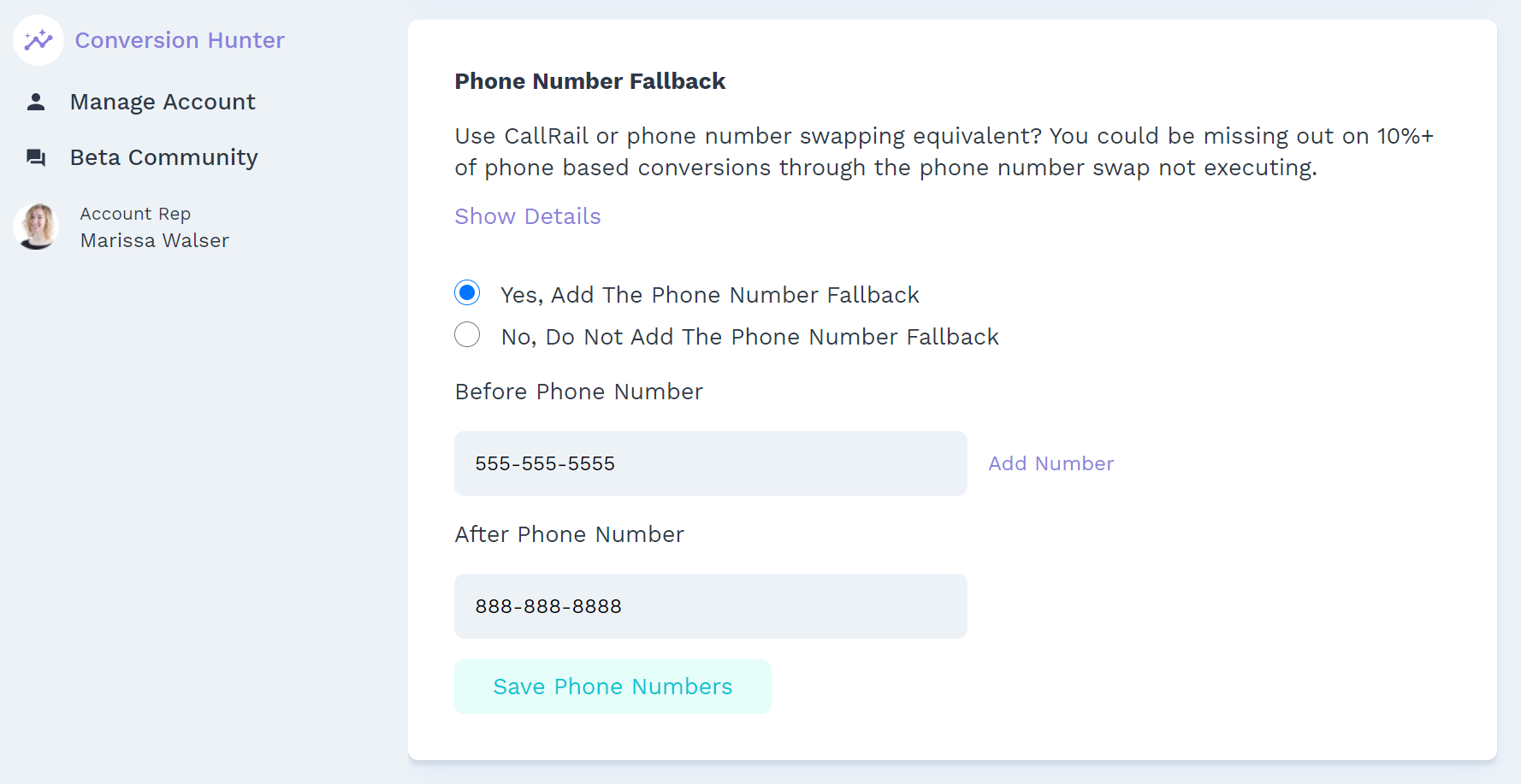
Image Swap Quickstart
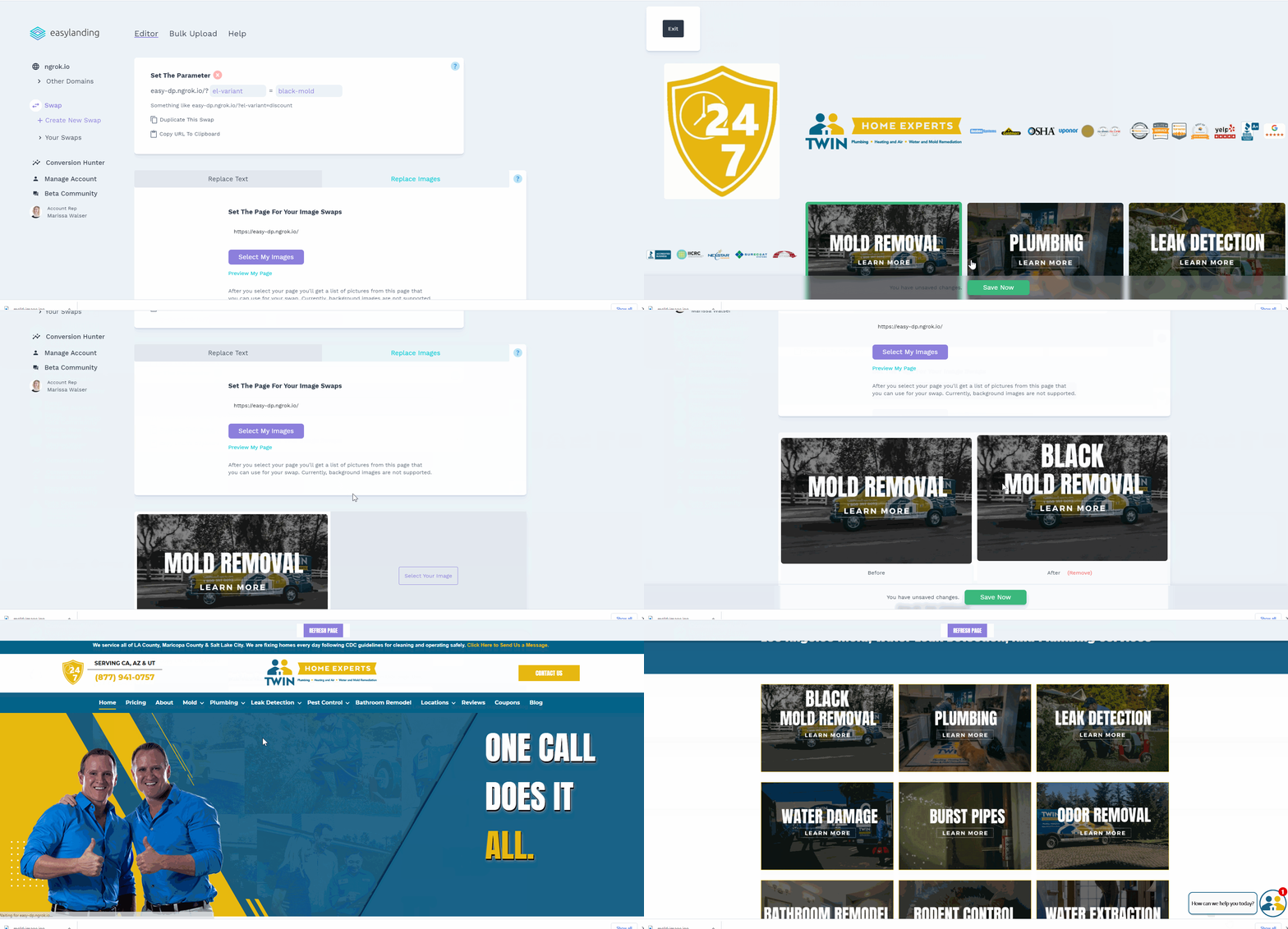
You can easily swap any non-background images found on your page with the image swap. This example shows uploading an existing image, but it’s just as easy to upload a new one.
Where To Next
Ready to supercharge your conversions? You can start your 30 day free trial here .